Moloch has now been published in TUGboat (Larsson and samcarter 2026)! The article will be available for free on the TUGboat website when the next issue is published.
Moloch 2.0.0 is Released!
I’m excited to announce a major update to Moloch, a minimalist Beamer presentation theme. Version 2.0.0 brings a complete overhaul of the color system, new themes, improved documentation, and several other refinements.
Moloch uses semantic versioning, so this major version bump indicates that there are breaking changes. This only applies to aesthetics, however, and all your existing presentations should still compile without issues. But do expect some changes in appearance due to the redesigned color system, updates to the itemize environment, and tweaks to existing themes.
Redesigned Color System
The biggest change in this release is a complete redesign of how colors work in Moloch. I have become increasingly frustrated with the previous system for a couple of reasons:
- The colors of the text, its background, and the respective colors in the frame titles were all linked together, which for instance meant that the frame title background color had to be the same as the text color, which limited customization options.
- Switching between light and dark modes was toggled by
background=dark, which both felt unintuitive (since it actually inverted all the colors) and also meant that the colors in the primary palette had to make sense if inverted, which again limited flexibility. - Because the light and dark switching was so basic, it meant that alert and example colors needed to be the same for both light and dark variants, but typically one wants to have brighter colors when the background is dark, and vice versa.
- Customizing the colors was quite difficult. Users would have to modify colors manually using Beamer’s
\setbeamercolor{}, withfgandbgoptions set correctly. I didn’t really have any problem with that, but it could not allow for granular control of light and dark themes. And more problematically, colors were linked viauseoptions, but these do not automatically refresh if the color linked is updated, which meant that users would have to add multiple lines just to modify the alert color everywhere it was used. - Color themes lived in their own files and were added via
\usecolortheme{moloch-tomorrow}etc, which was starting to feel a bit hard to manage given that we might want to eventually support a large variety of color themes.
The new color system now promises to fix all of these issues and is activated via a new macro \molochcolors{}. In the next sections I’ll try to outline how it works.
Light and Dark Variants
Every color theme now supports both light and dark variants that you can switch between seamlessly:
\molochcolors{variant=light}
\molochcolors{variant=dark}
This can1 even be used mid-presentation, which would technically allow someone to switch back and forth between dark and light modes.
1 Even though I am not sure how much of practical value there is to this.
Switching Themes
Switching the entire color theme can also be done easily via this new macro:
\molochcolors{theme=tomorrow}Or, if you want the dark theme:
\molochcolors{theme=tomorrow, variant=dark}Both this option and the variant option are aliased in the package options, so you can also set them when loading the theme:
\usetheme[colortheme=tomorrow, colortheme variant=dark]{moloch}Granular Color Control
The new \molochcolors{} command gives you granular control over individual colors in the theme. In particular, you can set colors that apply selectively to either the light or dark variant, or to the currently active variant. For instance, to set colors that apply to the current variant, you can do:
\molochcolors{
  alerted text=red,
  progressbar fg=blue
}
Or, if you want to set colors specifically for the light variant, you can do:
\molochcolors{
  light/normal text fg=black,
  light/frametitle bg=white
}
These settings will be stored separately for light and dark variants, so if you switch between them later, your customizations will persist!
As of now, the available customization options include:
normal text fg/bg- Body text colorsframetitle fg/bg- Frame title colors
alerted text- Alert/emphasis colorsexample text- Example text colorsprogressbar fg/bg- Progress bar colorsstandout fg/bg- Standout frame colors
User-Accessible Semantic Colors
All color themes now define semantic color names (like mNormaltextFg, mAlertFg, mProgressbarFg) that you can use anywhere in your presentation:
% Use theme colors in TikZ graphics
\begin{tikzpicture}
  \node[fill=mAlertFg, text=mNormaltextBg] {Alert!};
\end{tikzpicture}

% Or in text
This is \textcolor{mExampleFg}{colored text} using theme colors.
These are updated dynamically when you switch themes or variants, so you can rely on them to always reflect the current color scheme. Hopefully, this will make it easy to keep your entire presentation consistent with the chosen theme!
New Color Themes
As a result of the redesigned color system, it is now much easier to add new color themes. And in this release, I’ve added two new themes:
- Catppuccin, which is based on the popular Catppuccin color palette
- Paper, a high-contrast theme that uses black, white, greys, and a set of colors based on Stephen Few’s book Show Me the Numbers (Few 2004).
Catppuccin
The Catppuccin theme brings the beautiful pastel colors of the Catppuccin palette to Moloch presentations. It supports both light and dark variants. It uses quite low contrasts, so it is best suited for presentations in well-lit environments or web-based viewing.
\usetheme[colortheme=catppuccin]{moloch}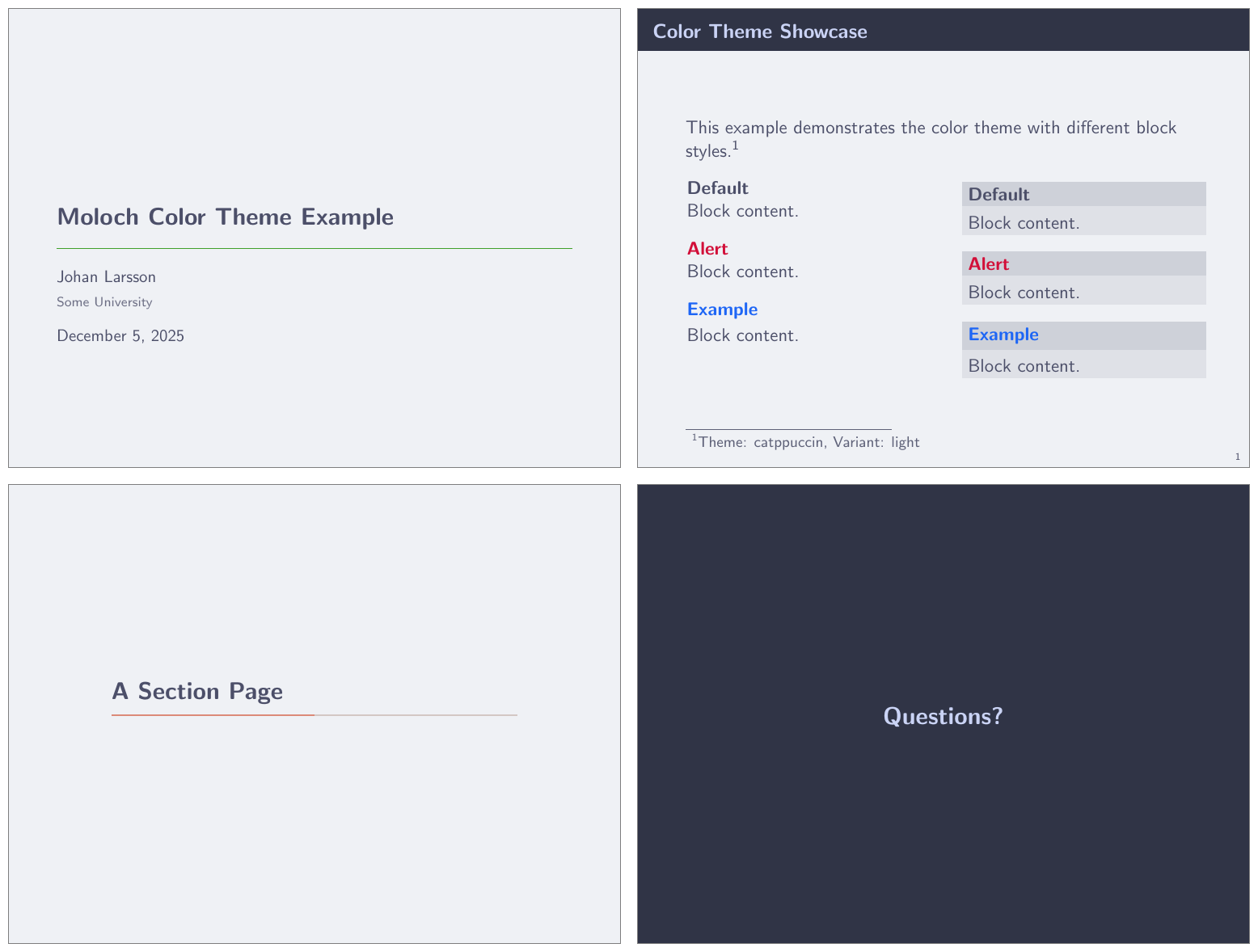

Paper
The Paper theme is one that I have long wanted to add, but which was difficult to implement due to the links between colors in the old system. It is a high-contrast theme that uses black, white, and greys for the main elements, and a set of colors inspired by Stephen Few’s Show Me the Numbers (Few 2004) for alerts and examples. It uses the same background for the main text as for the frame titles, which gives it a different feel compared to other themes.
\usetheme[colortheme=paper, colortheme variant=light]{moloch}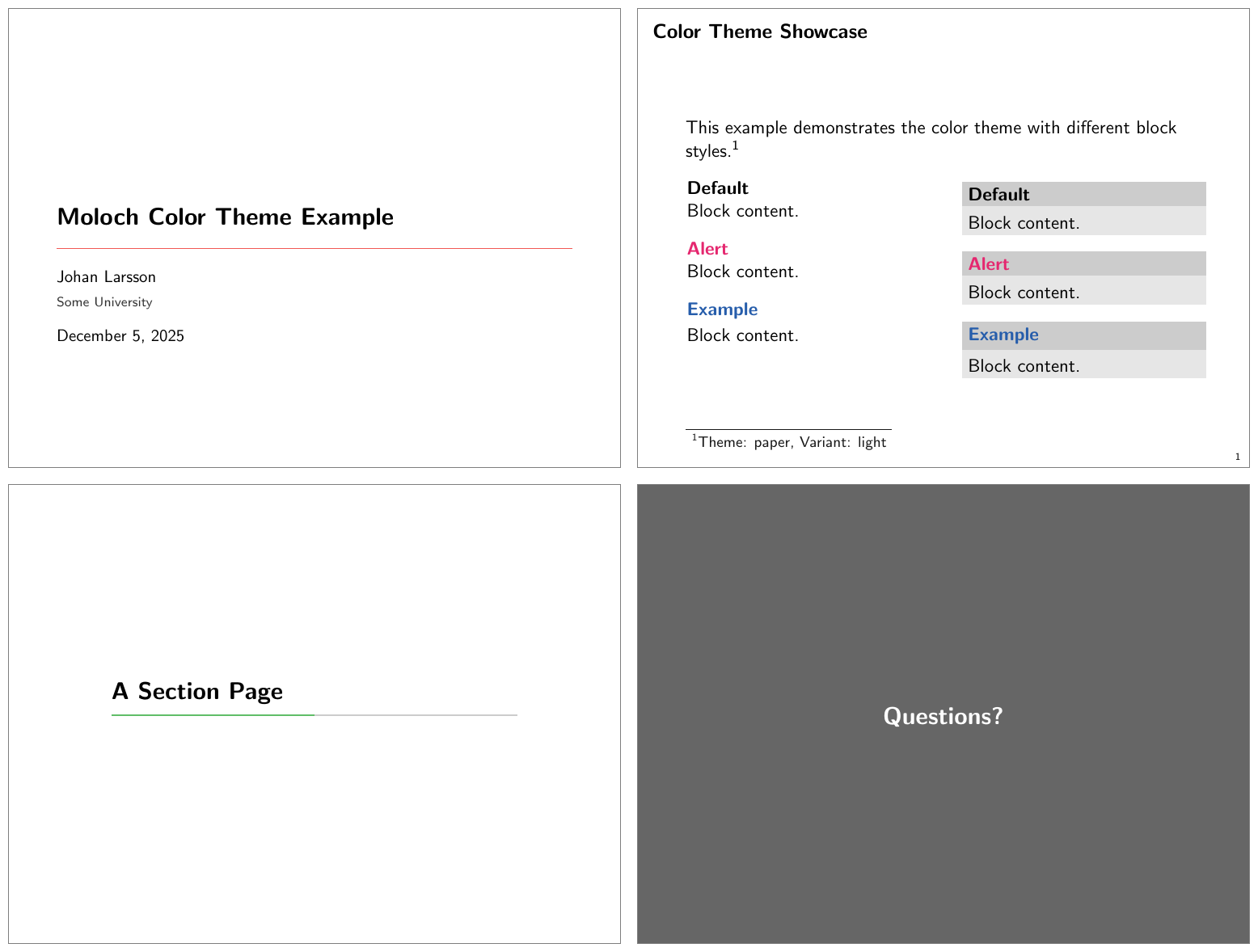
Improved Existing Themes
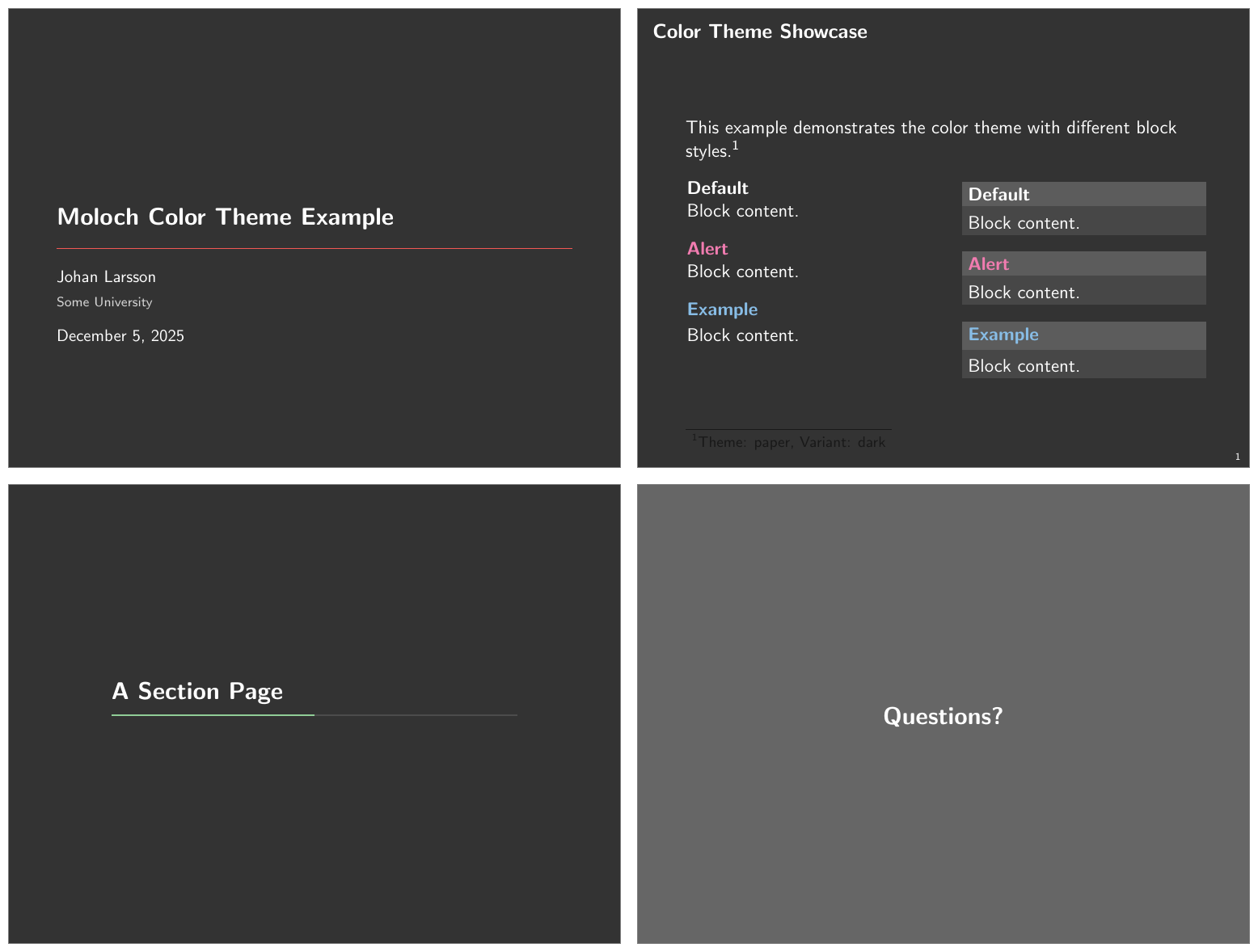
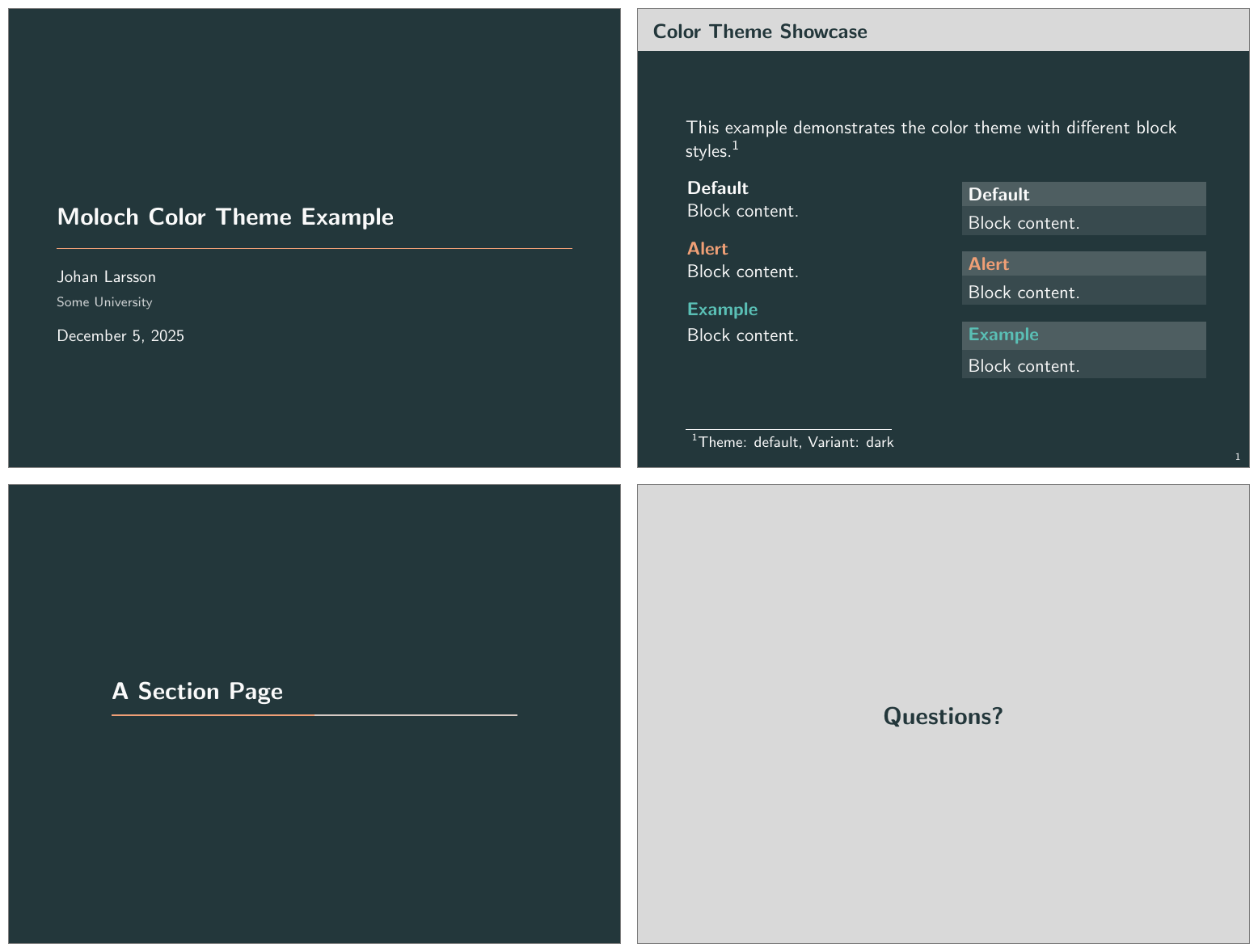
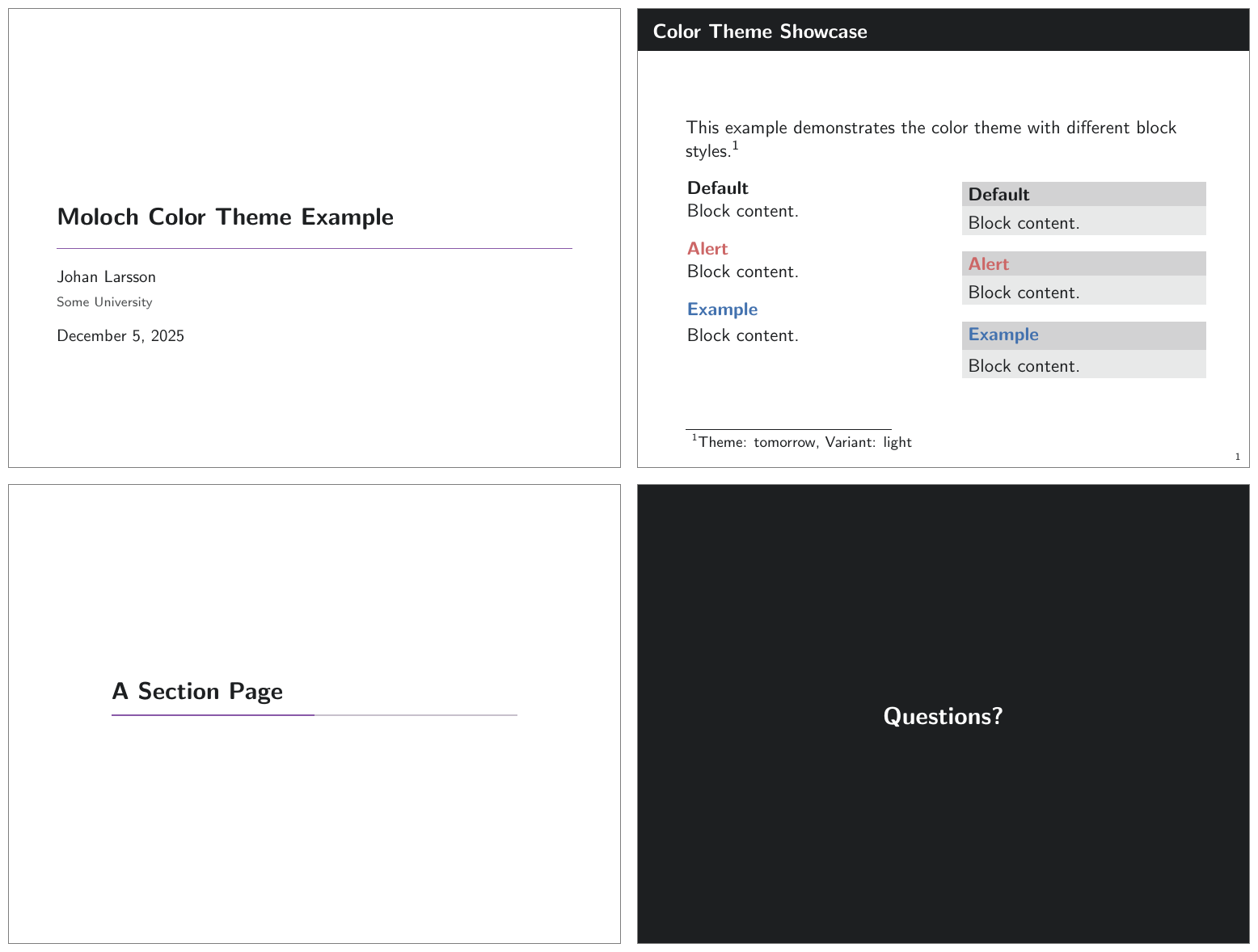
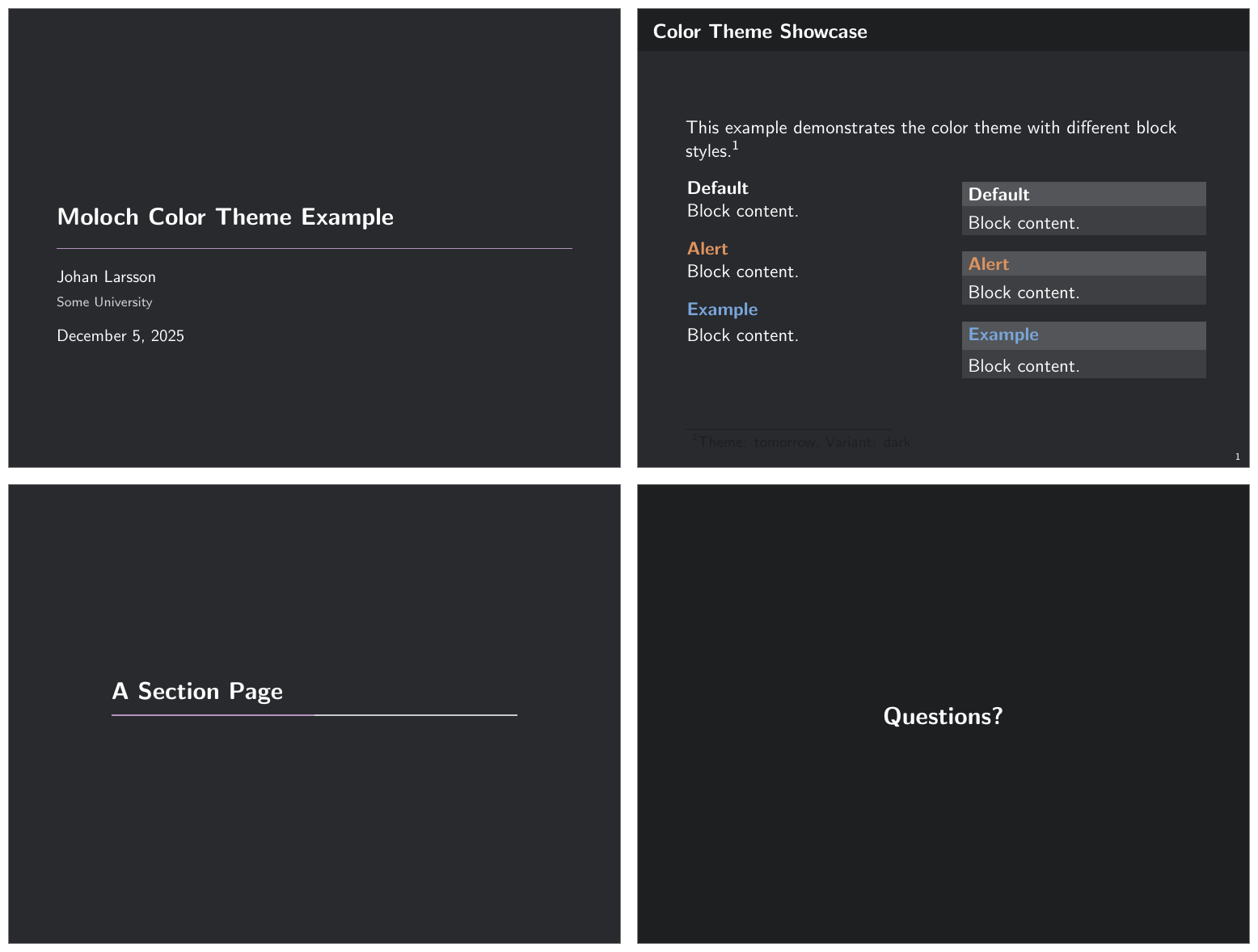
I’ve also made a few changes to the dark variants of the existing themes to take advantage of the new color system. In general, I do not find the use of a white (or very light) frame title background on dark themes to be appealing, so I have adjusted these to use the same background color as the main text area or a slightly darker shade.
Default Theme
I generally try to be more conservative with changes to the default theme, but I’ve changed the alert and example colors to be slightly brighter in the dark variant, and also made the frame title background slightly darker to avoid the stark contrast.
Tomorrow Theme
In the Tomorrow theme, I’ve made the frame title of the dark variant almost black, which I find looks better than the previous very light grey. The colors for alerts and examples have also been replaced with other colors from the Tomorrow color palette.
High Contrast Theme
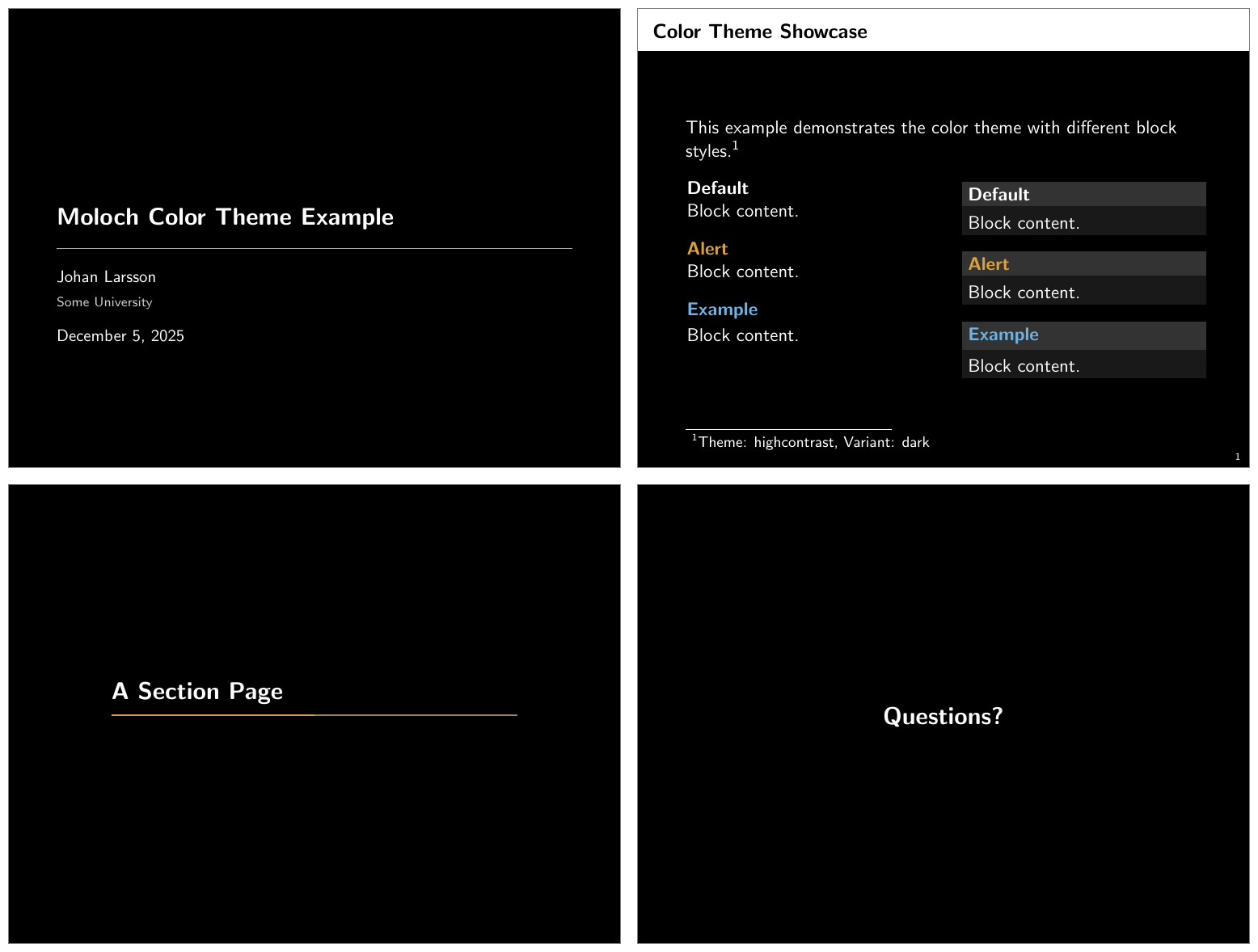
Because the High Contrast theme is supposed to be high contrast, I’ve kept the white frame title background in the dark variant, but I’ve adjusted the alert and example colors to be brighter versions of the original colors.
New Documentation Website
The Moloch documentation is now available as both a PDF manual and an interactive website at moloch.ink. Even if PDF documentation seems natural for LaTeX packages, I’ve long felt that it is cumbersome to navigate, especially since users often have to scroll through many pages to find what they need and search functionality is limited compared to a website. Not to mention that PDFs are not exactly mobile-friendly.
I’ve been meaning to set this up for a while, but haven’t really figured out a good way to do it. Much of the documentation for the implementation details of Moloch is written inside the .dtx files, which is great for keeping the documentation close to the code, but not so great for building a website.
I realized, however, that I could just keep the documentation in LaTeX syntax there, and just have Pandoc convert it to Markdown, which can then be used as source files for a Quarto website, which I can thereafter render into both HTML and PDF2 formats.
2 Yes, I know this turns it into LaTeX once again, which might feel backwards, but starting to write markdown inside the .dtx documents seemed like a too big change, at least for now.
The documentation is built with Quarto, which means:
- Always up-to-date: Documentation is generated directly from the theme’s source code
- Interactive examples: Live code samples you can copy and modify
- Searchable: Find what you need quickly
- Beautiful presentation: Clean, modern interface with syntax highlighting
- Accessible anywhere: Read on any device without downloading PDFs
The PDF manual is still available for offline reading, but the website offers a much better browsing experience with its table of contents, search functionality, and responsive design.
Refined Itemized List Styling
In version 1.1.0, Moloch introduced a refreshed list styling that used new symbols for itemize environments. Instead of using filled circle, circle, smaller circle, I switched to filled circle, filled square, and filled triangle, which I found to be more visually distinct and appealing.
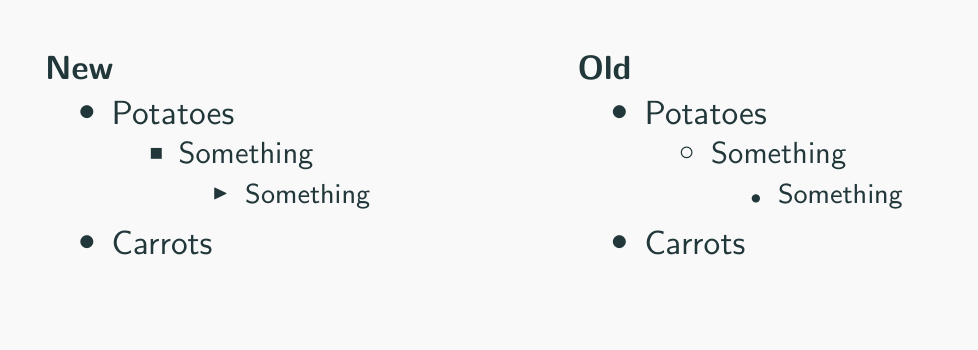
However, there were still some issues with the design3. In particular, the triangle and circles I used were based on math fonts, which sometimes led to inconsistent sizing and alignment issues that could depend on the compiler and font setup.
3 See this comment for instance.
Therefore in this release, the symbols are now all drawn using TikZ (or PGF primitives, to be precise), which ensures consistent sizing and alignment across different setups.
Increased Line Widths for the Progress Bar
The progress bars for Moloch (at section pages by default), have had quite a thin line width4 that was often hard to see. So in this release, I’ve increased it from 0.4pt to 1.0pt, which should make it more visible without being too obtrusive. I hope that most users will find this change beneficial, and know that you can otherwise easily customize it to your liking:
4 This is configurable via the progressbar linewidth option, but the default value was quite low.
\molochset{progressbar linewidth=0.4pt}The above line would restore the previous thin line width if desired.
The title separator line on the title page was also increased, but only marginally from 0.4pt to 0.5pt, given that it has only decorative purpose, but I am considering increasing it further in a future release.
Migration Guide
If you’re upgrading from an earlier version of Moloch, here are the key changes to be aware of:
Color Options
The old background=dark option is deprecated. Use the new variant system instead:
% Old (deprecated)
\usetheme[background=dark]{moloch}

% New
\usetheme[colortheme variant=dark]{moloch}
Color Theme
Enabling the tomorrow theme and high contrast theme is now done via the colortheme option:
% Old
\usecolortheme{moloch-tomorrow}
% New
\usetheme[colortheme=tomorrow]{moloch}
The use of \usecolortheme{moloch-highcontrast} is still supported for backward compatibility, but it is recommended to switch to the new method.
Getting Started
Moloch 2.0.0 is available on CTAN and will be included in the next TeX Live and MikTeX updates. You can also install it manually from the GitHub repository.
To try out the new features:
\documentclass{beamer}
\usetheme[colortheme=catppuccin, colortheme variant=light]{moloch}

\title{My Presentation}
\author{Your Name}

\begin{document}

\maketitle

\begin{frame}{New Color System}
  The new color system makes it easy to create beautiful presentations.

  \begin{alertblock}{Try It Out}
    Customize colors with \texttt{\textbackslash molochcolors\{\}}.
  \end{alertblock}
\end{frame}

\end{document}
Check out the full documentation for comprehensive guides, examples, and customization options.